
Crowd storms Russian airport to protest flight from Israel

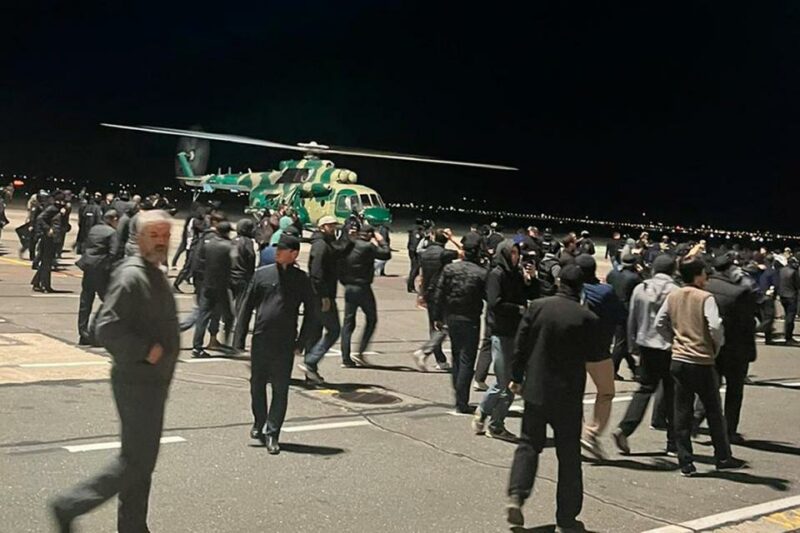
On Sunday, a large group of people reportedly entered the airport in Makhachkala, the capital of Russia’s Dagestan region, and accessed the landing field to protest the arrival of an airliner from Tel Aviv.
The airport was temporarily shut down, and police were dispatched to the scene. As of now, there have been no reports of arrests or injuries.
Reports suggest that the crowd shouted racially charged slogans and attempted to storm the aircraft belonging to the Russian carrier Red Wings.
Footage shared on social media showed protesters waving Palestinian flags while some tried to overturn a police vehicle.
Additionally, some protesters were seen checking the passports of passengers who had arrived in Makhachkala.
The Prime Minister of Israel, Benjamin Netanyahu, released a statement on Sunday night, requesting the Russian law enforcement authorities to take necessary action against rioters and antisemitic incitement.

The Israeli ambassador to Russia is working closely with the Russian government to ensure the safety of Israeli citizens and Jews in the region.
The Ministry of Internal Affairs for Russia’s North Caucasian Federal District, where Dagestan is located, has stated that they will use CCTV footage to identify those who stormed the airport, and those involved will be held accountable.
While expressing support for Gaza, the regional Dagestani government urged citizens to remain calm and not participate in such protests.
The Supreme Mufti of Dagestan, Sheikh Akhmad Afandi, also called on residents to stop the unrest at the airport, stating that rallies are not the right way to address the issue.
He urged residents to show maximum patience and calm and assured them that the issue will be resolved appropriately.
This story was first published by Antigua News on : antigua.news/2023/10/29/crowd-storms-russian-airport-to-protest-flight-from-israel. © 2023 Antigua News. Republication without permission is not allowed.

About the author
The Editorial Staff refers to all reporters employed by Antigua.news. When an article is not an original creation of Antigua.news—such as when it is based on a press release, other media articles, letters to the editor, or court decisions—one of our staff members is responsible for overseeing its publication.
Read our editorial standards and corrections policy. Spotted an error? Contact the newsroom.
More from World
View section
Spain Votes After an Eviction Shook Its Government
An elderly tenant’s eviction helped trigger the November 29 snap election. Pedro Sánchez is recovering in some polls, but the right still has the clearer route to a governing majority.
By Dario Item

Dozens of KFC Restaurants Closing Across 10 U.S. States as Major Franchise Operator Files for Bankruptcy
Financial troubles, falling sales and millions in unpaid franchise fees have forced a major KFC operator into bankruptcy, with 72 restaurant locations affected and more closures possible.
By Cory Wayland

Robert Pattinson is the new James Bond
The Twilight and The Batman star succeeds Daniel Craig as 007 in the next James Bond film, directed by Denis Villeneuve and written by Steven Knight.
By Mick the Ram

Microsoft Outage cripples millions globally
Outlook, Teams and Copilot users reported disruptions across 74 countries as Microsoft cited increased load on its infrastructure.
By Mick the Ram
Comments
Be the first to comment.