
APUA Introduces Trenchless Drilling Technology as Overnight Roadworks Begin in St. John’s

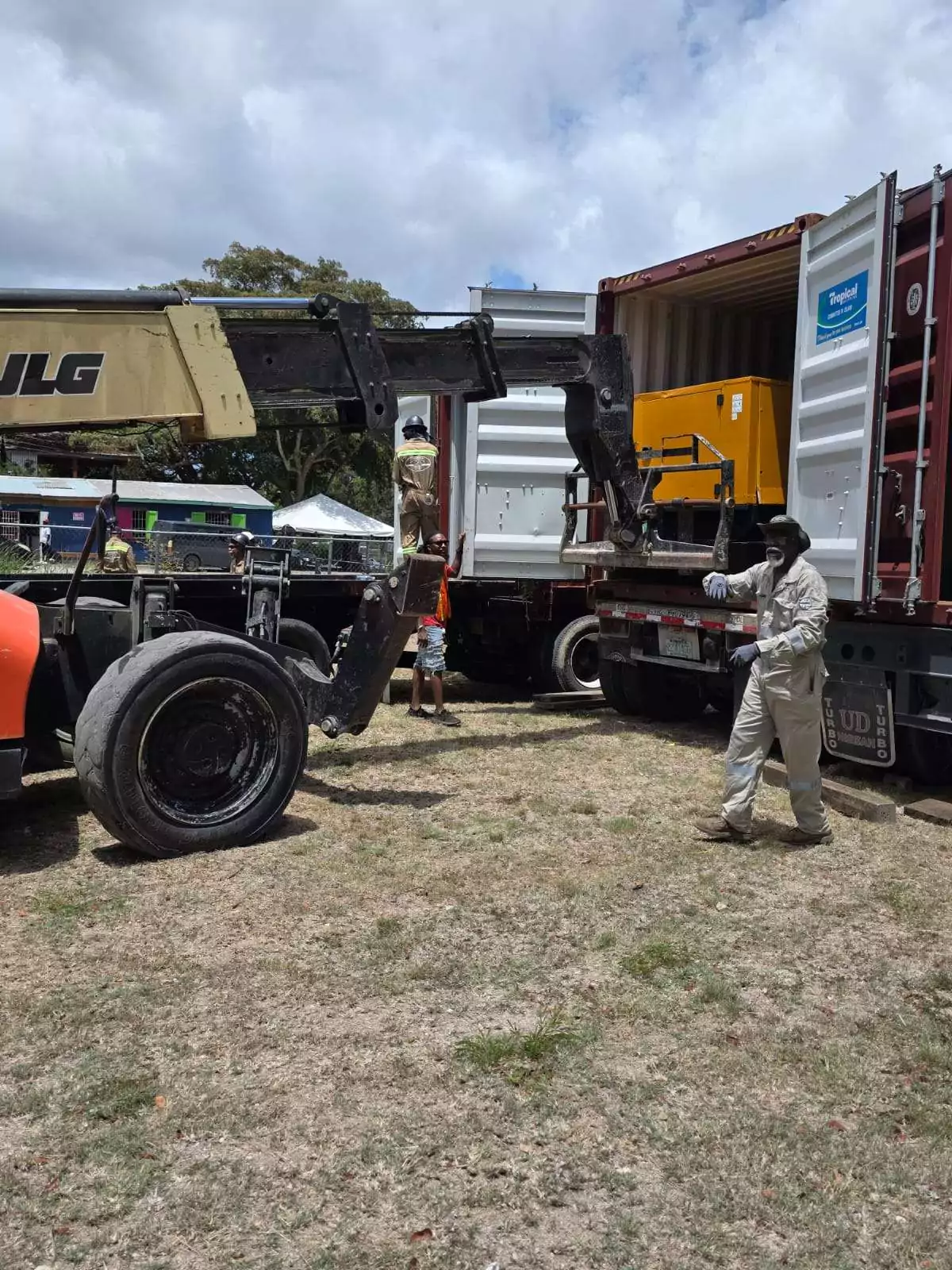
APUA will begin overnight trenchless pipeline installation works along High Street and St. Mary’s Street from June 29 using Horizontal Directional Drilling technology to minimize road disruptions.
APUA is preparing to launch a major phase of its underground infrastructure upgrade with the introduction of advanced Horizontal Directional Drilling (HDD) technology, a method designed to install new pipelines while significantly reducing disruption to traffic and businesses.
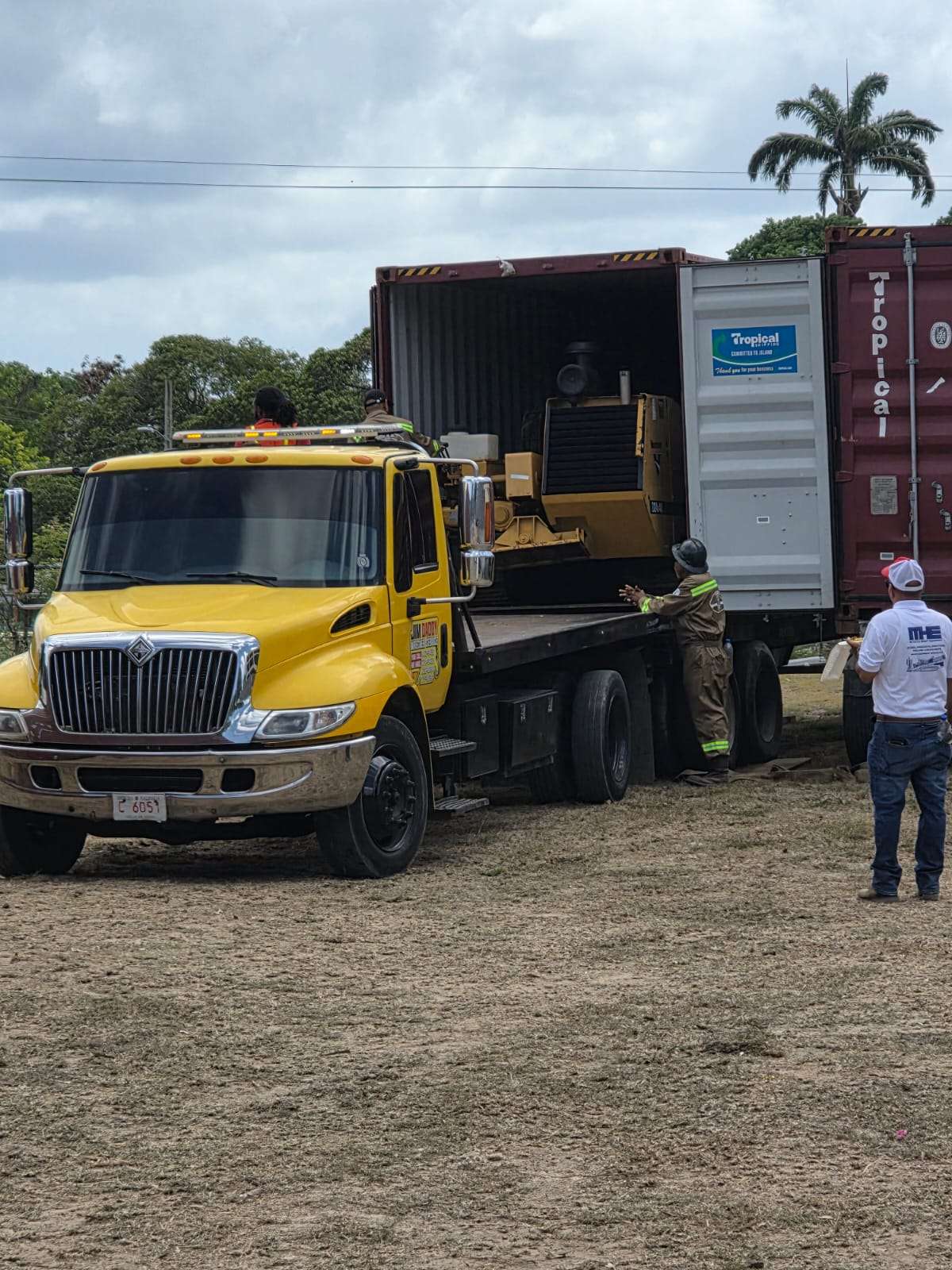
On Saturday, an overseas technical team, working alongside APUA personnel, began offloading specialized HDD equipment on the southern side of the Sunshine Hub in St. John’s ahead of the start of construction.
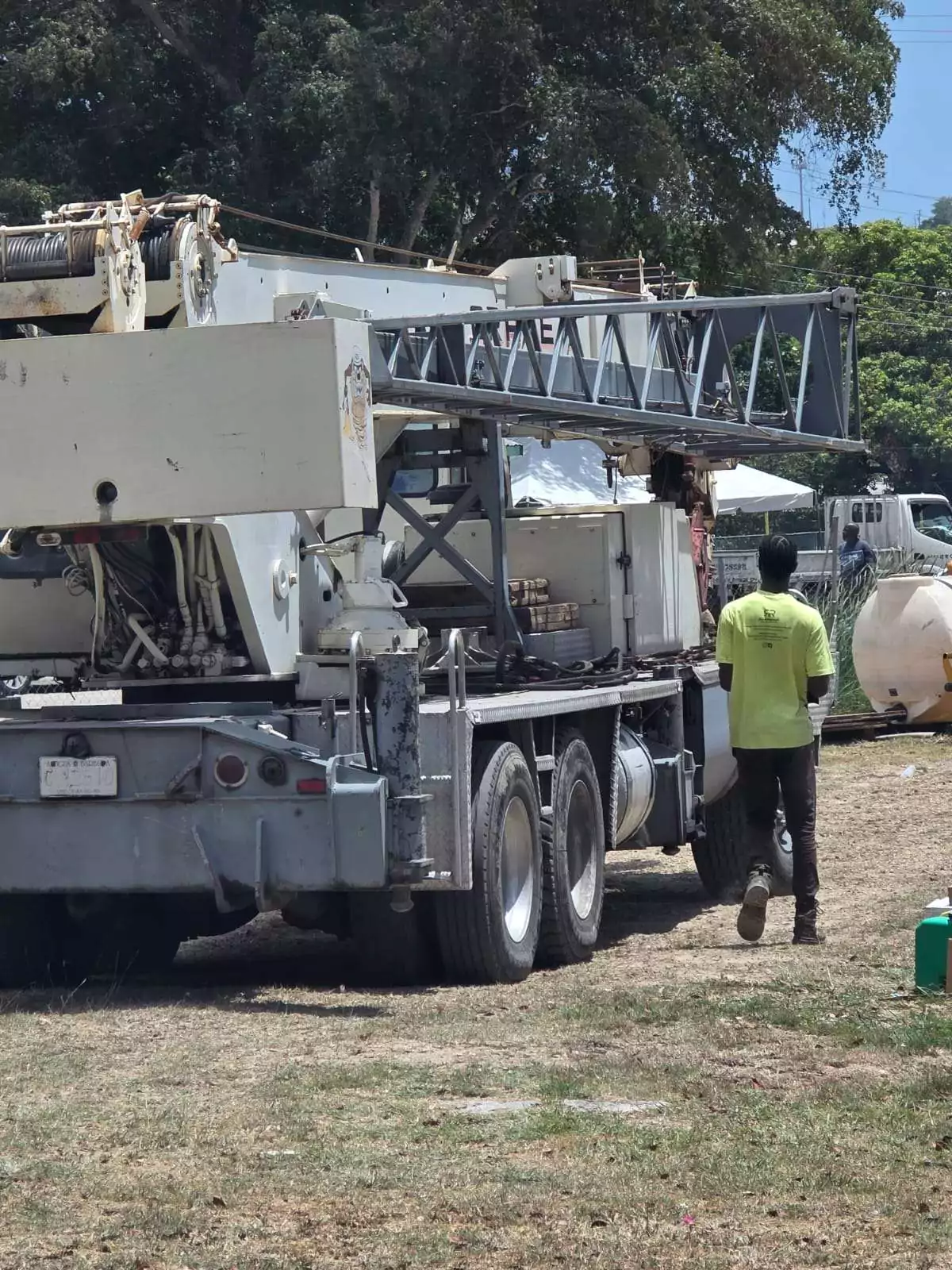
Unlike traditional excavation methods, Horizontal Directional Drilling allows new pipes to be installed underground through a trenchless process that requires only an entry and exit point.
The technology minimizes the need for extensive road excavation, helping to preserve road surfaces, reduce traffic interruptions, and shorten construction time.
The next phase of the project will commence on Monday, June 29, with overnight works scheduled along High Street and St. Mary’s Street.
Construction activities will take place daily from 6:00 p.m. to 6:00 a.m., allowing crews to complete critical infrastructure upgrades while minimizing disruption during peak daytime traffic.
Motorists and pedestrians are being urged to exercise caution when travelling through the affected areas and to follow all posted traffic signs, barriers, and directions from traffic management personnel.
APUA thanked the public for its continued patience and cooperation, noting that the works form part of ongoing efforts to modernize the country’s water infrastructure and improve the reliability of essential services.
This story was first published by Antigua News on : antigua.news/2026/06/27/apua-introduces-trenchless-drilling-technology-as-overnight-roadworks-begin-in-st-johns. © 2026 Antigua News. Republication without permission is not allowed.

About the author
The Editorial Staff refers to all reporters employed by Antigua.news. When an article is not an original creation of Antigua.news—such as when it is based on a press release, other media articles, letters to the editor, or court decisions—one of our staff members is responsible for overseeing its publication.
Read our editorial standards and corrections policy. Spotted an error? Contact the newsroom.
More from Antigua and Barbuda
View section
St. Claire Williams Proposes Tax Breaks for Businesses That Sponsor Sports
The Antigua and Barbuda Cycling Association president says tax relief could encourage companies to put more money directly into developing local sports.
By Shermain Bique-Charles

Pilots, Flight Attendants and Aviation Specialists Added to CARICOM Skills Movement
The decision opens a pathway to wider regional employment for qualified aviation professionals, with legal changes to follow.
By Shermain Bique-Charles

Freeland Pitches Multi-Sport Weekends to Grow Tourism in Antigua and Barbuda
The Minister of State in the Ministry of Tourism says coordinating races, tournaments and games could draw more visitors from neighbouring islands.
By Shermain Bique-Charles

Investigation Continues After Fire Destroys Three Homes in Cooks Extension
A fourth home sustained minor damage in last Thursday morning’s blaze. No one was injured.
By Shermain Bique-Charles
Comments (1)
Juju Bee June 28, 2026, 3:04 PM