
“I wanted to do 8”- Top CSEC student reflects on academic journey.

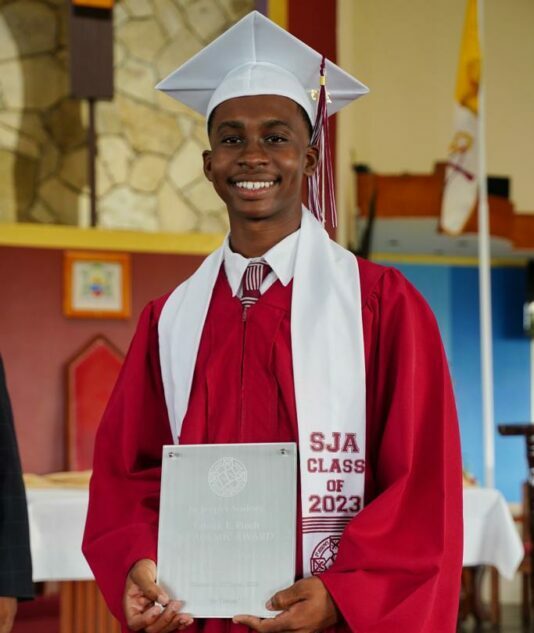
As the news broke late last week announcing the top CSEC student D’Aundre Samuel of St. Joseph’s Academy (SJA), many congratulated the youngster on his achievements
But ironically, the accolades and celebrations could all have gone to another student as the Antigua State College (ASC) pupil revealed he initially wanted to write just eight subjects, a drastic drop from the 23 subjects he sat and passed with 21-grade ones, and two grade twos.
Speaking on State Media early Monday morning, Samuel cheekily mentioned that it was his family, friends, and teachers at SJA who truly encouraged him to push further.
Samuel was a top student at the Grace Christian Academy throughout his schooling and continued that trend into his secondary journey at SJA.
“Well, during my secondary school tenure, they saw my potential to do that amount, and my family, teachers at St. Joseph’s Academy, and family friends encouraged me to do that amount,” Samuel explained.
While speaking on his recent success, Samuel was beaming with pride.

“I’m happy. I’m a bit ecstatic because I’ve been putting in all the hard work and now seeing the results and what it has brought me, I am happy about that,” Samuel said.
He thanked his support system and school for their assistance in his success.
Samuel shared that he hopes to take up a job in engineering, and it is his dream to attend MIT.
The announcement of the top CSEC students was delayed due to two candidates questioning their grades.
Adrian Judnarine, also from SJA, came in second place after writing 26 subjects and achieving 19 grade 1s and 7 grade IIs.
Tied for third place were Stephanie Archibald and Tianna Bretney from the Baptist Academy of Antigua, who both wrote 20 subjects and received 18 grade 1s and 2 grade IIs each.
This story was first published by Antigua News on : antigua.news/2024/02/05/i-wanted-to-do-8-top-csec-student-reflects-on-academic-journey. © 2024 Antigua News. Republication without permission is not allowed.

About the author
The Editorial Staff refers to all reporters employed by Antigua.news. When an article is not an original creation of Antigua.news—such as when it is based on a press release, other media articles, letters to the editor, or court decisions—one of our staff members is responsible for overseeing its publication.
Read our editorial standards and corrections policy. Spotted an error? Contact the newsroom.
More from Antigua and Barbuda
View section
Freeland Challenges Qualifier Schedule as College Commitments Complicate Team Selection
Basketball president says the timing of another qualifying round created difficulties for overseas players and added financial pressure
By Shermain Bique-Charles

School League Referee Calls for Investigation Into Alleged Verbal Abuse by Grammar School Coach
Devon Ollivere is seeking a public apology and safeguards for match officials following an alleged confrontation with Chesley Browne at Radio Range Football Field.
By Editorial Staff

Janica Adams Earns Special Recognition at Regional Tourism Youth Congress
Antigua and Barbuda’s Junior Minister of Tourism impressed with a creative destination pitch highlighting culture, adventure and bun and cheese ice cream.
By Shermain Bique-Charles

Dr Benjamin Calls for Community-Based Mental Health Care to Replace Clarevue Model
The consultant psychiatrist says meaningful reform must include housing, family support and direct involvement from people living with mental health conditions
By Shermain Bique-Charles
Comments
Be the first to comment.