
Joel Rayne’s “Replenish School Supplies” Initiative Provides Vital Assistance to Over 400 Children in St. George

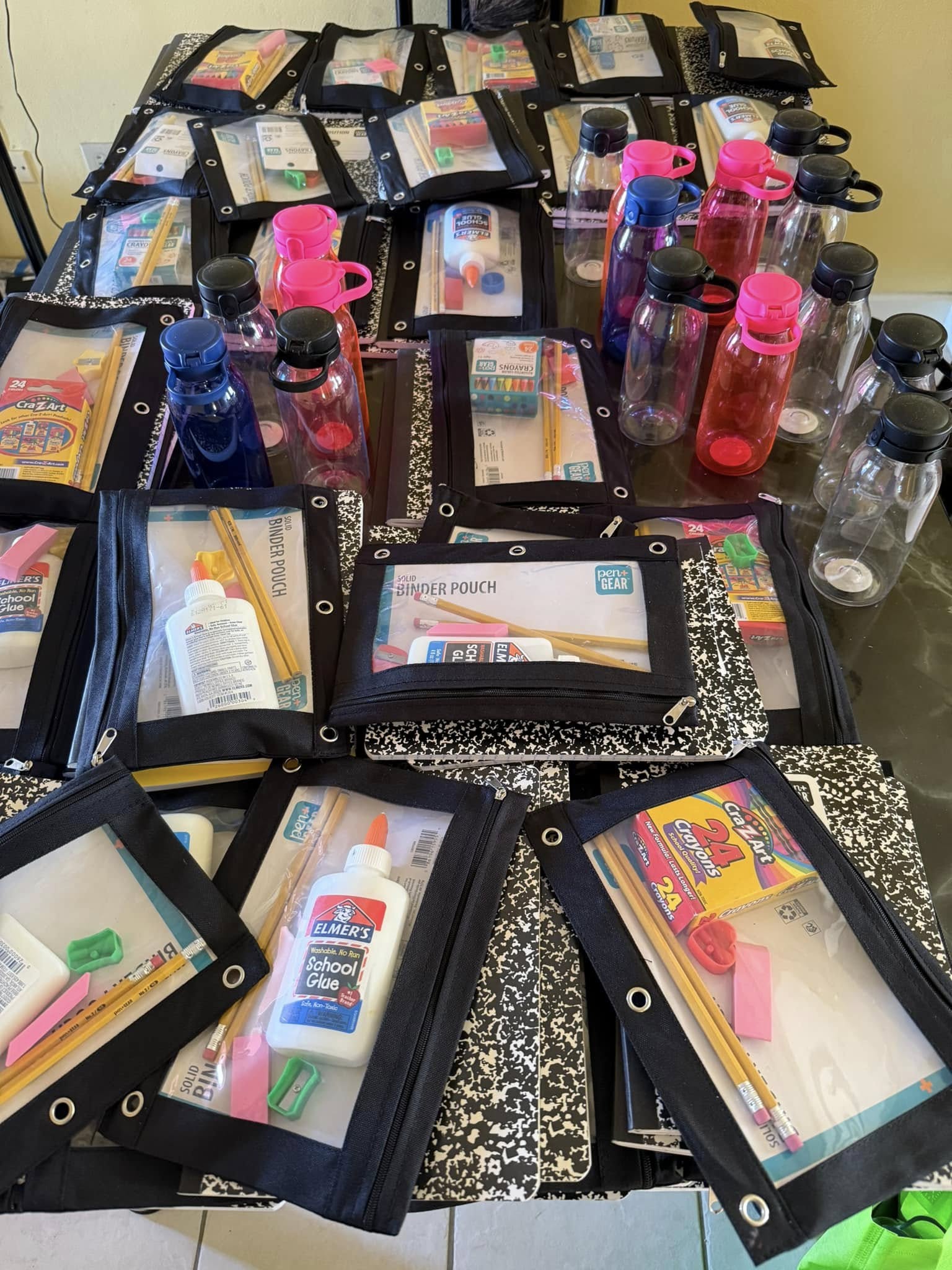
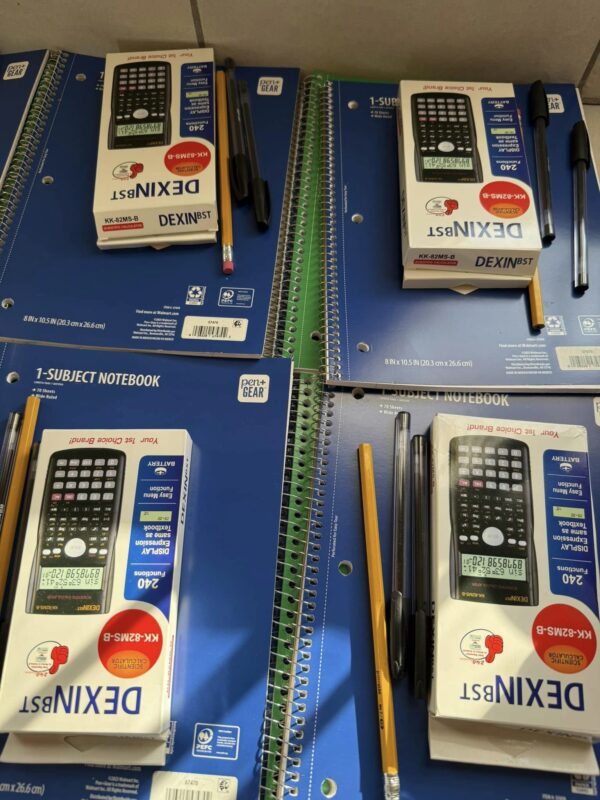
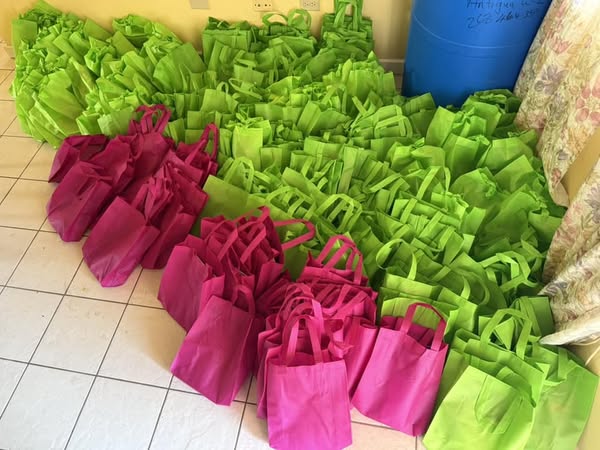
Over 400 children in the St. George constituency have received much-needed support through the “Replenish School Supplies” initiative, a program spearheaded by Joel Rayne to ensure students are equipped with the tools they need to thrive academically.
The initiative, which provided essential items such as notebooks, geometry sets, calculators, and other learning materials, reflects Rayne’s commitment to supporting education and alleviating financial pressures on families.
“With education being a cornerstone of opportunity, this program not only equips children with the physical resources they need to succeed but also inspires confidence and a sense of belonging in the classroom,” said Joel Rayne.

Parents and community members expressed overwhelming gratitude for the program’s impact. One parent shared, “This program has been a blessing for my family. With multiple children in school, the costs add up quickly, and this support means so much to us.”
The “Replenish School Supplies” initiative not only addresses the immediate needs of students but also sets the foundation for long-term educational success in St. George. By reducing barriers to learning, it fosters an environment where children can focus on their studies and reach their full potential.
Rayne emphasized his commitment to investing in the future of the constituency, stating, “Our children deserve every opportunity to excel. By supporting their education, we are strengthening our community and paving the way for a brighter tomorrow.”
This initiative is part of Joel Rayne’s broader vision to uplift the people of St. George and create opportunities for growth and success across the constituency.
This story was first published by Antigua News on : antigua.news/2025/01/06/joel-raynes-replenish-school-supplies-initiative-provides-vital-assistance-to-over-400-children-in-st-george. © 2025 Antigua News. Republication without permission is not allowed.

About the author
The Editorial Staff refers to all reporters employed by Antigua.news. When an article is not an original creation of Antigua.news—such as when it is based on a press release, other media articles, letters to the editor, or court decisions—one of our staff members is responsible for overseeing its publication.
Read our editorial standards and corrections policy. Spotted an error? Contact the newsroom.
More from Antigua and Barbuda
View section
Idris Elba and Senator Jamilla Kirwan to Headline One Commonwealth Night as Hosts
Star-studded cultural celebration at Sir Vivian Richards Stadium will bring together international talent and local performers during CHOGM 2026.
By Cory Wayland

Regional Troops Arrive in Antigua and Barbuda to Strengthen CHOGM Security Preparations
Cayman Islands Regiment personnel join a regional military effort to support security, logistics and event operations ahead of the November summit.
By Cory Wayland

Police Outpost and Management Office Approved for Pelican Court
Cabinet establishes dedicated arrangements for security, maintenance and community concerns at the housing development.
By Shermain Bique-Charles

Local Musicians and Cultural Performers Could Feature in Tomlinson Film
Cabinet welcomes opportunities for steelpan, Carnival traditions and local production talent in the proposed international project.
By Shermain Bique-Charles
Comments
Be the first to comment.